




My account
Yes! Your account is by default private. The lists within your account are also by default private. Per list you can decide whether you make it private, for your friends-only or public.
How can I connect with my friends?
You can connect with people who already have a Listee account or those who still need to sign-up.
Invite those who already have an account:
1. Press the friends button in your top right of your screen
2. Search by name in tab ‘add new friends’
Invite those who don’t have an Listee account:
1. Clicking on the ‘friends-button’ in the top right of your screen
2. Click on the ‘add new friends’ tab
3. Presh the button invite with link
How do I change my personal settings?
On the top right of your screen you see a round button. Press this button and here you can change your user profile information, passwords etc.
Go to menu (top right of your screen) and click ‘Close Account’. Enter your password and information will be permanently deleted.
Create lists
There are three sorts of list:
1. Private lists – only you can see the content
2. Friends only lists – only you and your friends can see these lists
3. Public lists – everyone with the URL can see the content of these lists
Can I share a list with people who don’t have the Listee app?
Yes, we also have a web-app. This means people who don’t have the nmobile app are redirected to our website. They can view your content online. Make sure your lists are public, otherwise they can’t see the content.
You can invite others (users and non-users) to co-create with you in a list, so you can add items to a list together. You can invite them when you create a list or add them to an excisting list.
Saving & unsaving lists of others
You can save and unsave lists of other users. The lists you saved are shown at the tab ‘saved lists’. You can (un)save lists within a list or at the profile of the list owner.
When the list owner adds new items to the list, these are shown in the list you saved. You always have an up to date version at your fingertips.
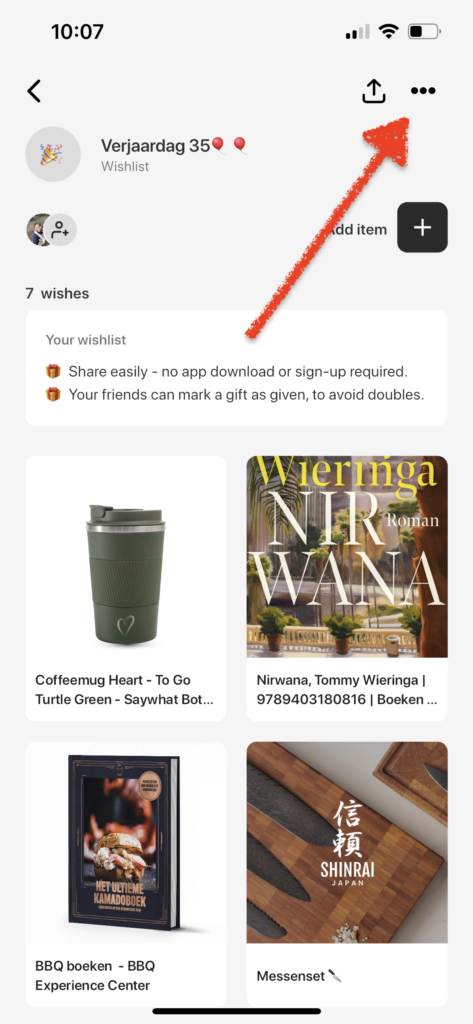
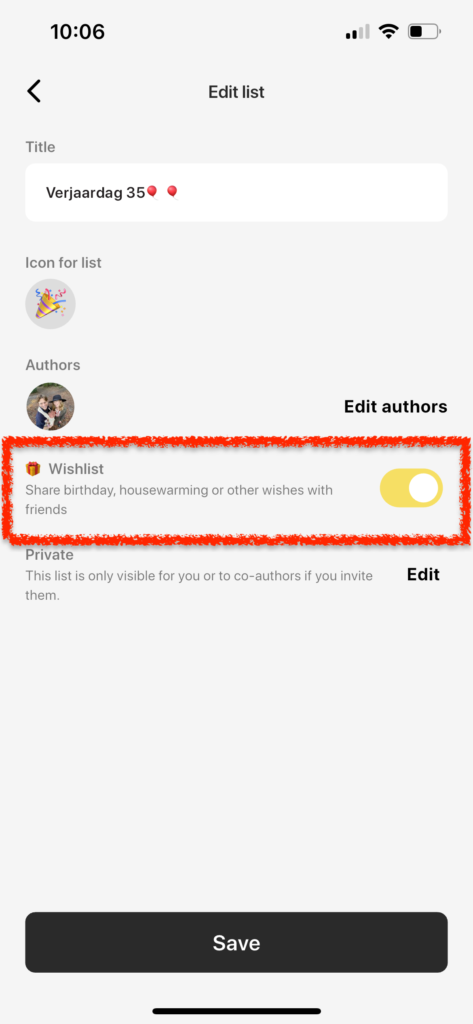
Every list can we be turned into an Wishlist in seconds. You only need to turn the switch ‘Wishlist on’. When you create a new list you can also turn this switch on.
1.Click on ‘edit list’
2.Turn Wishlist on
Add items to a list
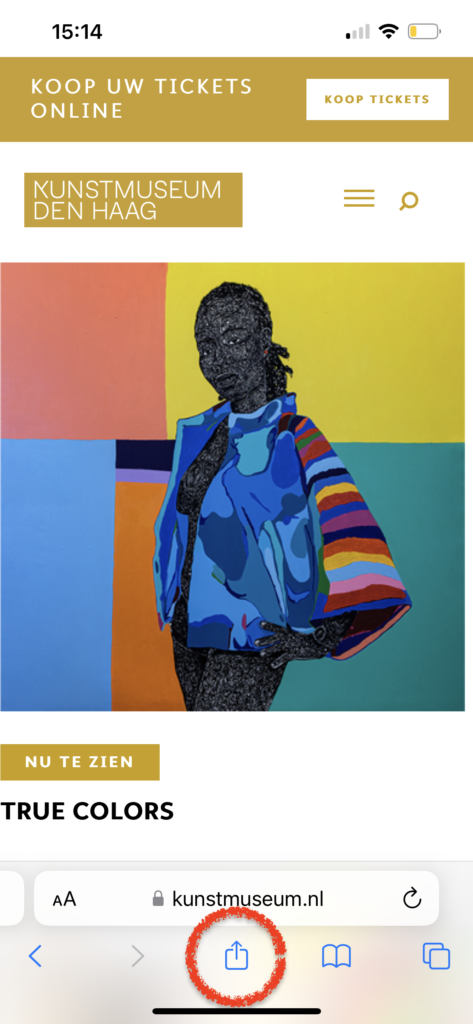
How to bookmark URL’s on iPhone?
1. Press the 'share-button' in your browser or any other app
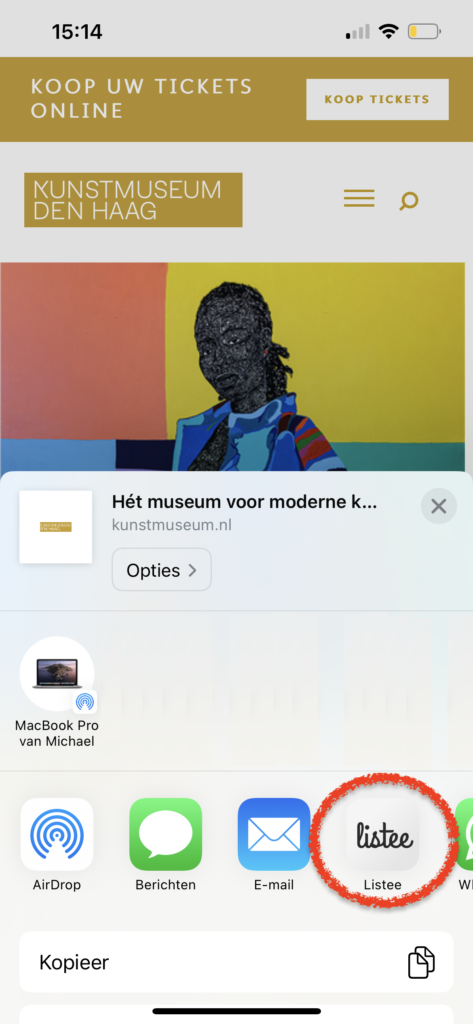
2. Select the Listee app
3. Select or create a list for your item
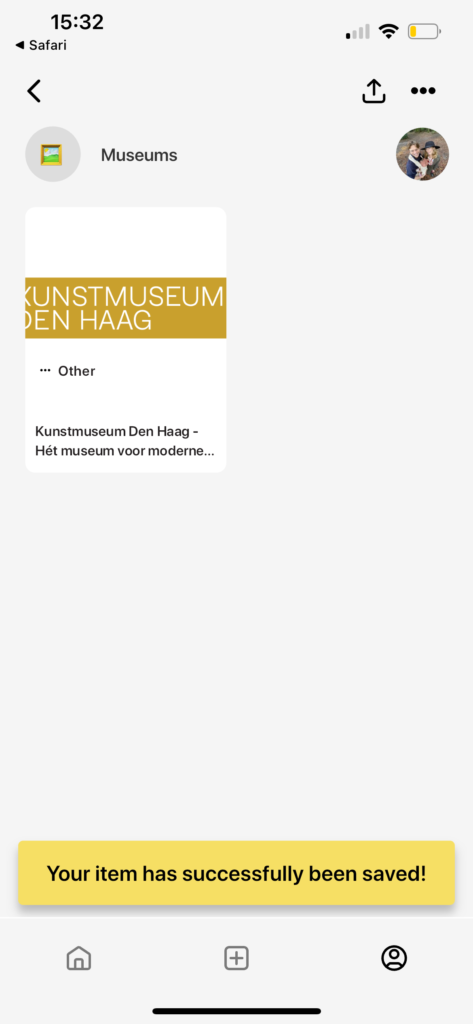
4. Your item is saved!
How to bookmark URL’s on Android?
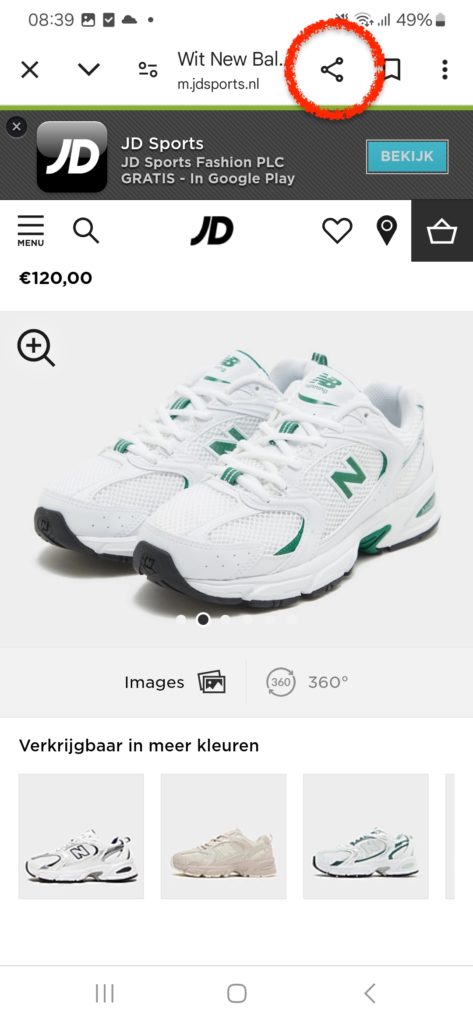
1. Press the 'share-button' in your browser or any other app
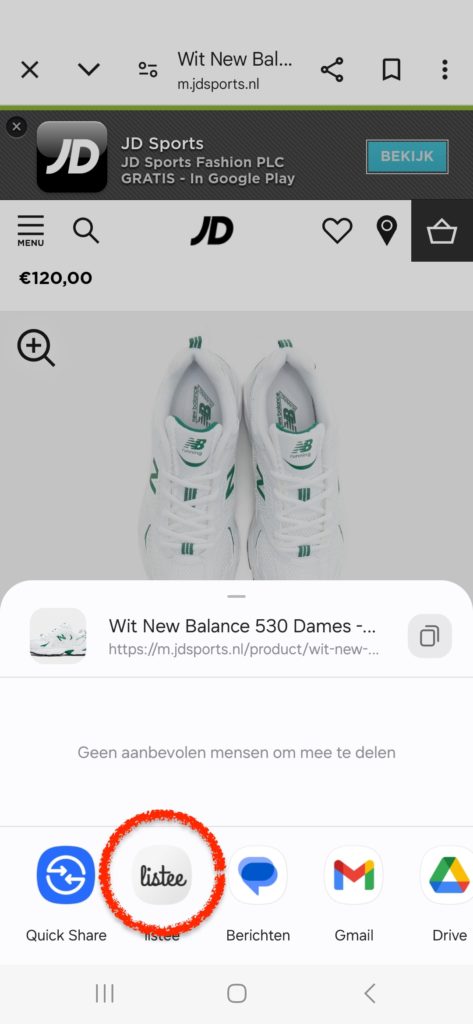
2. Select the Listee app
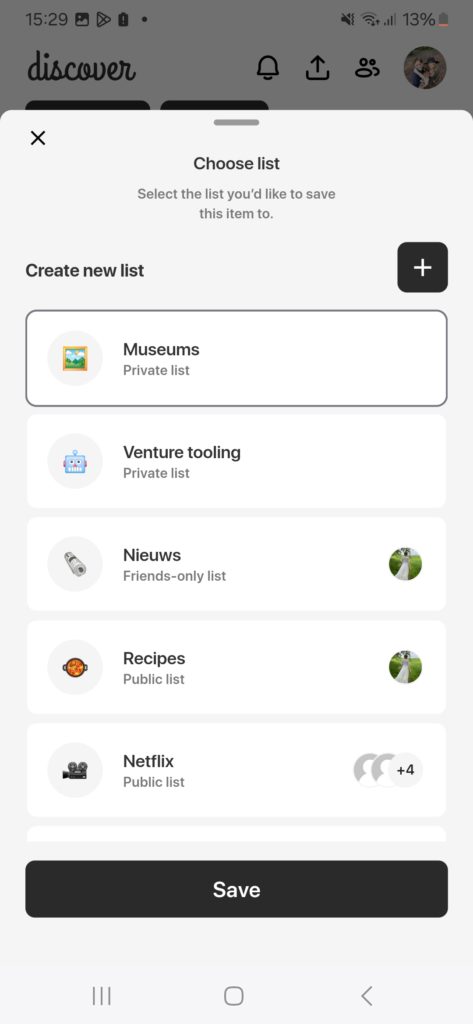
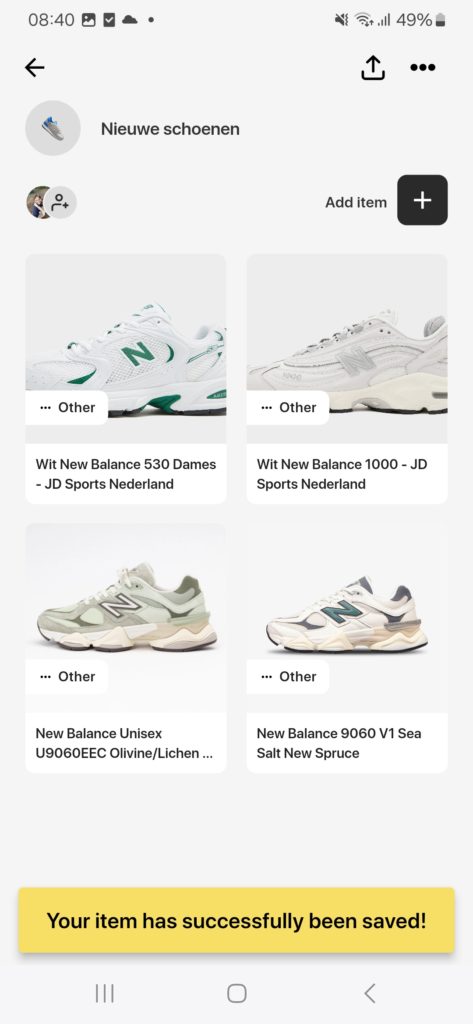
3. Select or create a list for your item
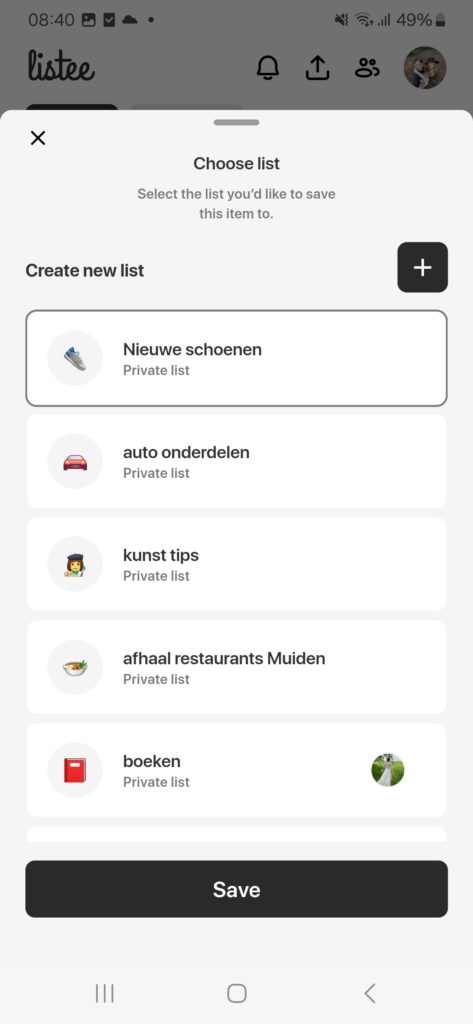
4. Your item is saved!
Can I add any type of content?
Yes, you can add anything to your list as long as it has a URL and it doens’t violate our terms & conditions.
You can search for items within Listee of find anything on internet or any other app. We will link towards this destination.
I don’t see the right pictures in my list, what to do?
We know how important it is to have good looking lists. As you add an item we receive the information (title + discription) and photo from the website. Sometimes they don’t give us the best or any photo at all. In this case you can change the photo using the following steps:
1. Go to the page of your item
2. In the top right you see three little dots, click on them
3. Click on ‘edit item’
4. Upload the right photo for this item
How can I save and share locations with map view?
Go to the ‘+’ button in the navigation bar or within an list. Select the tab ‘Place’ and search for the location, From all locations you add this way, we receive additional information to plot the locations on a map.